Microsoft Flight Simulator for Beginners: First Flights, Assists and Controls
Getting started in Microsoft Flight Simulator 2024 and 2020: flight training, assistance presets, a first aircraft, the six-pack, takeoff, landing and ATC.
Microsoft Flight Simulator puts the entire planet under your wings, but the first time you sit in a virtual cockpit, the sheer number of switches, gauges and menus can be overwhelming. The good news is that you do not need to learn everything at once. Both Microsoft Flight Simulator 2024 and its predecessor, the 2020 edition, include training and a wide range of assists that let you fly on day one and add realism as you go.
This guide covers what you need for your first hours: which version you are dealing with, where to start, how assistance settings work, which aircraft to pick first, what the basic instruments tell you, a simple takeoff and landing flow, air traffic control basics and how to think about controls.
Which Version Are You Playing?
Both games are developed by Asobo Studio and published by Xbox Game Studios.
- Microsoft Flight Simulator (2020) launched on Windows on August 18, 2020, and arrived on Xbox Series X|S on July 27, 2021. It recreates the world using Bing Maps data, with 3D features generated with the help of Microsoft Azure AI.
- Microsoft Flight Simulator 2024 released on November 19, 2024, for Windows PC, Xbox Series X|S and Xbox Cloud Gaming. A PlayStation 5 version followed on December 8, 2025, the first time the series appeared on a Sony console.
The 2024 edition adds a career mode and many structured activities, from aerial firefighting and search and rescue to air ambulance work and cargo. It also leans more heavily on streamed data. The core flying skills, however, are the same in both versions, so most of this guide applies to either.
Where to Start: Training Before Free Flight
It is tempting to pick a jet and take off from your hometown, but a short detour through training saves a lot of frustration.
Flight Training
Both games include structured training. In the 2020 version, a tutorial covers basic controls, flight instruments and essential skills, ending with a takeoff and landing test. In the 2024 edition, individual training flights are listed in the Activities section, and a Mission Steps panel summarizes the current objective and required inputs during training and career flights. Realism assists are generally forced off during training, so you learn the real behavior of the aircraft.
Landing challenges
Once you have the basics, landing challenges are a great way to practice. In the 2020 version they are scored on centerline accuracy, stopping distance and touchdown smoothness, which gives you clear feedback on what to improve.
Free flight
Free flight lets you choose any aircraft, airport, time and weather. It is perfect for sightseeing and for practicing a specific skill without mission objectives getting in the way.
Assistance Settings: Your Training Wheels
Assists make the simulator more forgiving. Microsoft Flight Simulator 2024 offers two presets:
- All Assists, aimed at newcomers to aviation and at players who need help controlling parts of the aircraft.
- Default Assists, which turns off most assists and leaves a few that intermediate users may still need to keep the aircraft stable.
Either preset can be fine-tuned with the Customization button. Useful individual assists in the 2024 edition include:
- Auto-Rudder, which coordinates the rudder for you, very helpful if you fly with a controller or have no rudder pedals.
- AI Auto-Trim and Automixture, which handle trim and engine mixture settings.
- Visual aids such as the active waypoint marker, flight path guidance and the taxi ribbon that shows your route on the ground.
- AI-handled radio communications, so you do not have to talk to ATC yourself.
The 2020 edition offers similar help: taxi guidance, route and waypoint markers, landing path guidance, an Active Pause and Autorudder, among others.
A good progression: start with All Assists, then switch off one assist at a time once you are comfortable. Visual guidance is usually the first to go, followed by auto-rudder once you have pedals or a twist-grip stick, and finally AI radio handling.
Choosing Your First Aircraft
For the first hours, pick a small, single-engine propeller aircraft. Training flights typically use small trainers for good reason:
- They fly slowly, which gives you time to think.
- Their controls are simple, with few systems to manage.
- They are forgiving on landing and can use short runways.
- Their instruments are the classic analog “six-pack,” which teaches the fundamentals.
Airliners and jets are tempting, but they depend on autopilot, navigation systems and procedures that make far more sense once you understand basic flying. Save them for later, or try them with assists on purely for the view.
Reading the Basic Instruments
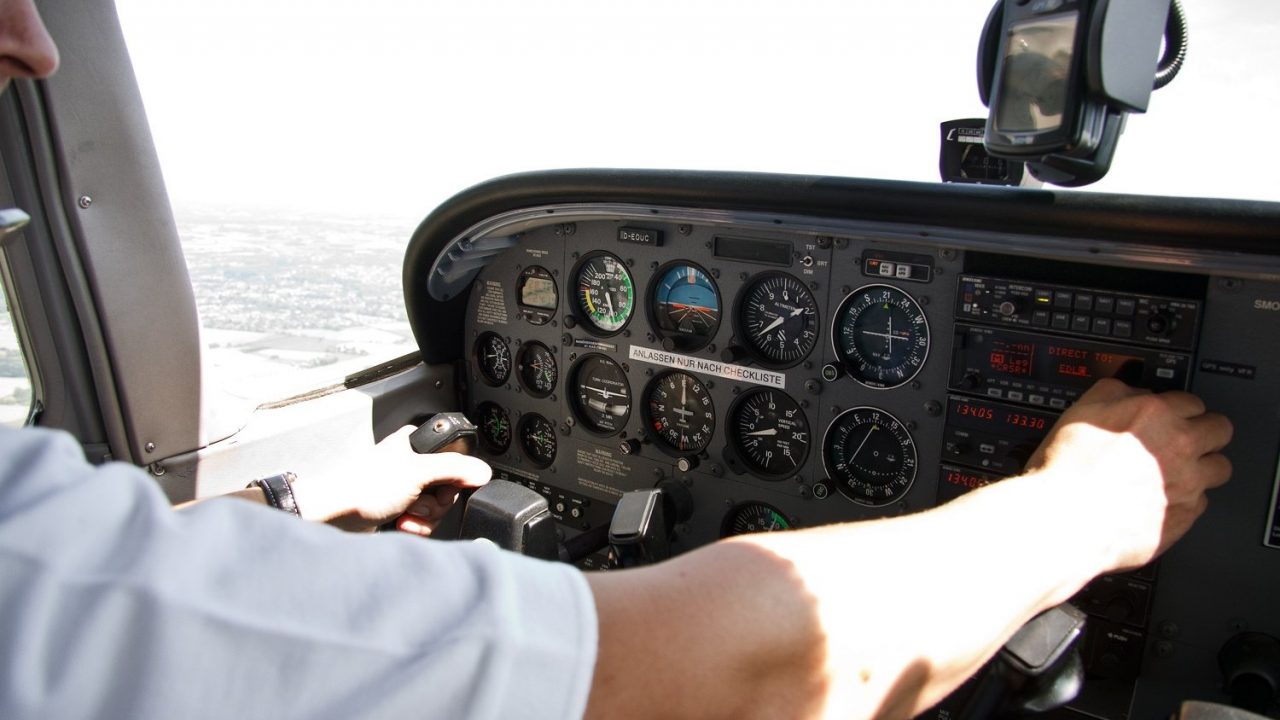
Most small trainers have six primary flight instruments, nicknamed the “six-pack.” In the standard “basic T” layout, the attitude indicator sits top center, airspeed to its left, the altimeter to its right and the heading indicator directly below.
| Instrument | What it tells you |
|---|---|
| Airspeed indicator | Your speed through the air, usually in knots |
| Attitude indicator | Whether the wings are level and the nose is above or below the horizon |
| Altimeter | Altitude above sea level, based on air pressure |
| Turn coordinator | Rate of turn, plus a ball showing whether the turn is coordinated |
| Heading indicator | Which direction you are pointing |
| Vertical speed indicator | How fast you are climbing or descending |
Beginners usually stare at one instrument. Pilots instead “scan,” glancing between the attitude indicator and the others in a regular pattern, while also looking outside. Practicing a scan early makes everything else easier.
A Simple Takeoff and Landing Flow
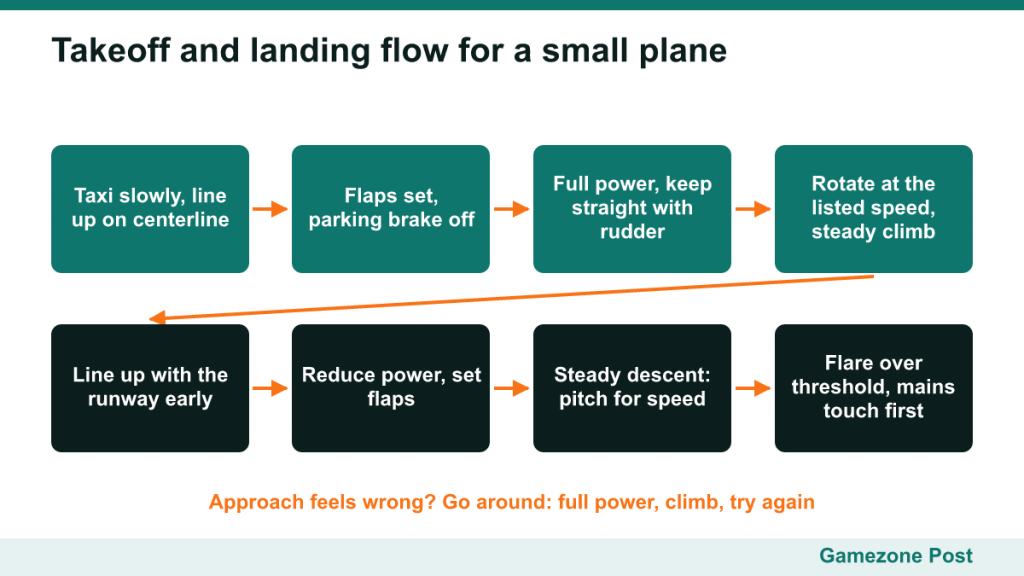
Every aircraft has its own numbers, so check the aircraft’s checklist in the sim for exact speeds. The general flow for a small single-engine plane looks like this.
Before takeoff
- Taxi to the runway slowly, following the taxi ribbon if you have it on.
- Line up on the centerline.
- Check that flaps are set as the checklist says and that the parking brake is off.
Takeoff
- Apply full power smoothly.
- Keep the aircraft on the centerline with gentle rudder inputs (or let auto-rudder help).
- At the rotation speed listed for your aircraft, gently pull back to raise the nose.
- Climb at a steady attitude; avoid pulling the nose too high, which bleeds speed.
Approach and landing
- Line up with the runway from a distance, rather than turning in at the last moment.
- Reduce power and set flaps as the checklist suggests to slow down.
- Descend at a steady rate, using pitch to hold speed and power to control descent.
- Over the runway threshold, reduce power to idle and gently raise the nose (the “flare”) so the main wheels touch first.
- Keep straight with rudder and brake smoothly.
If an approach feels wrong, go around: apply full power, climb and try again. It is what real pilots do, and it is much better than forcing a bad landing.
Air Traffic Control Basics
Both versions include AI air traffic control. You request clearances, receive taxi instructions, are handed between controllers and get vectors or altitudes. In the 2020 version, a virtual co-pilot can handle clearances and checklists; in the 2024 edition, AI management of radio communications is available as an assist, and you can enable subtitles for ATC dialog.
Tips for your first ATC flights:
- Start at a small airport with little traffic.
- Read back each instruction carefully and follow it before selecting the next option.
- Write down assigned headings and altitudes if you lose track.
- If ATC overwhelms you, let the AI handle radio calls while you focus on flying.
The 2020 edition also supports the community networks VATSIM and IVAO, where human volunteers act as controllers. They are rewarding later, but learn the in-game ATC first.
Controller, Keyboard or Yoke?
Microsoft’s own accessibility guidance notes that in-flight controls work best with analog inputs such as joysticks, yokes or an Xbox controller. A few general points:
- Keyboard and mouse can technically fly the aircraft, but digital key presses make smooth control difficult. They are better for menus and cockpit interaction than for flying.
- A gamepad offers analog sticks and triggers and is a perfectly good way to start, especially on Xbox or PS5. Keep auto-rudder on.
- A joystick or yoke gives more precise control and feels closer to the real thing. Pedals let you turn off auto-rudder.
On Xbox Series X|S, most PC flight peripherals are not compatible unless they have a console mode, so check compatibility before you plug anything in. Whatever you use, spend a few minutes in the control settings adjusting sensitivity, because the default response is not always smooth.
Common Beginner Mistakes
- Starting in an airliner. Learn to fly a small plane first.
- Overcontrolling. Small, gentle inputs are almost always better than big ones.
- Ignoring trim. Trim relieves control pressure so the aircraft holds an attitude without constant input.
- Chasing the airspeed needle. Set an attitude and power, wait a moment, then adjust.
- Turning off all assists at once. Remove them gradually.
Next Steps
Once takeoffs and landings feel comfortable, try short cross-country flights between nearby airports, then experiment with the autopilot and navigation radios. In the 2024 edition, career mode adds structure with certifications and specializations such as medevac, cargo and passenger transport; if that progression appeals to you, our explainer on management and tycoon games shows how similar loops work elsewhere. Take it one skill at a time, and the cockpit that looked impossible on day one will soon feel like home.